Italiano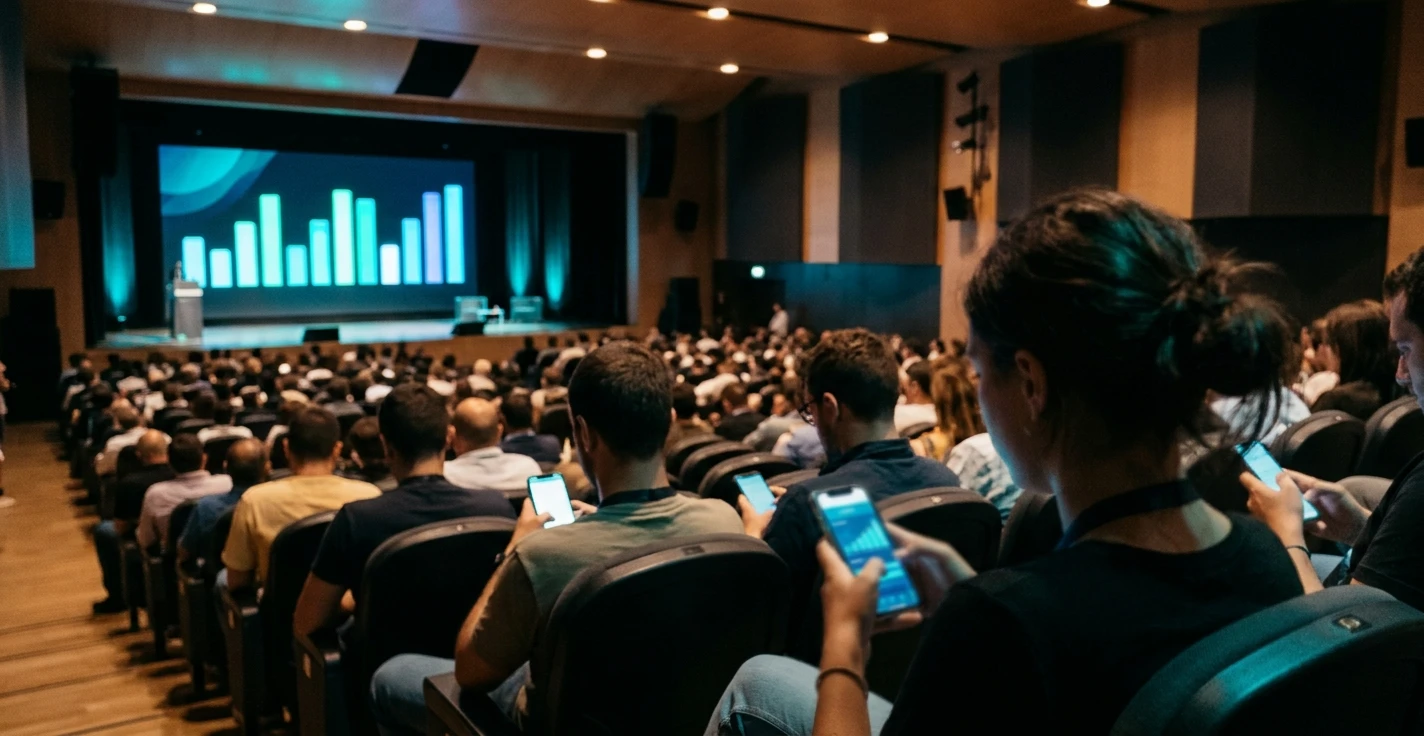
When the room switches off mid-morning
Anyone who organises events knows that moment well. After the third talk in a row, heads drop towards phones, someone steps out for a coffee and never comes back, and the speaker is talking to a room that is only half listening. It is not the content's fault: sitting and listening for hours, without ever being asked to take part, tires anyone out.
The most common reaction is to close the talk with the classic "any questions?". What often follows is an awkward silence, or the same person speaking up once again. The point is that this question asks a lot of the audience: standing up, taking the microphone, speaking in front of everyone. A different question, such as "what do you think?", asked in the right way, asks for a small gesture instead: a tap on a phone screen.
This is where live event polls come in: questions put to the room that everyone can answer in real time, with results appearing on the big screen a few moments later. They change the pace of the session and, at the same time, collect information that would otherwise be lost.
The core idea. A poll in the room works when it turns the audience from spectators into part of the conversation, without asking anyone to expose themselves more than they want to.
How a live poll works, from QR code to big screen
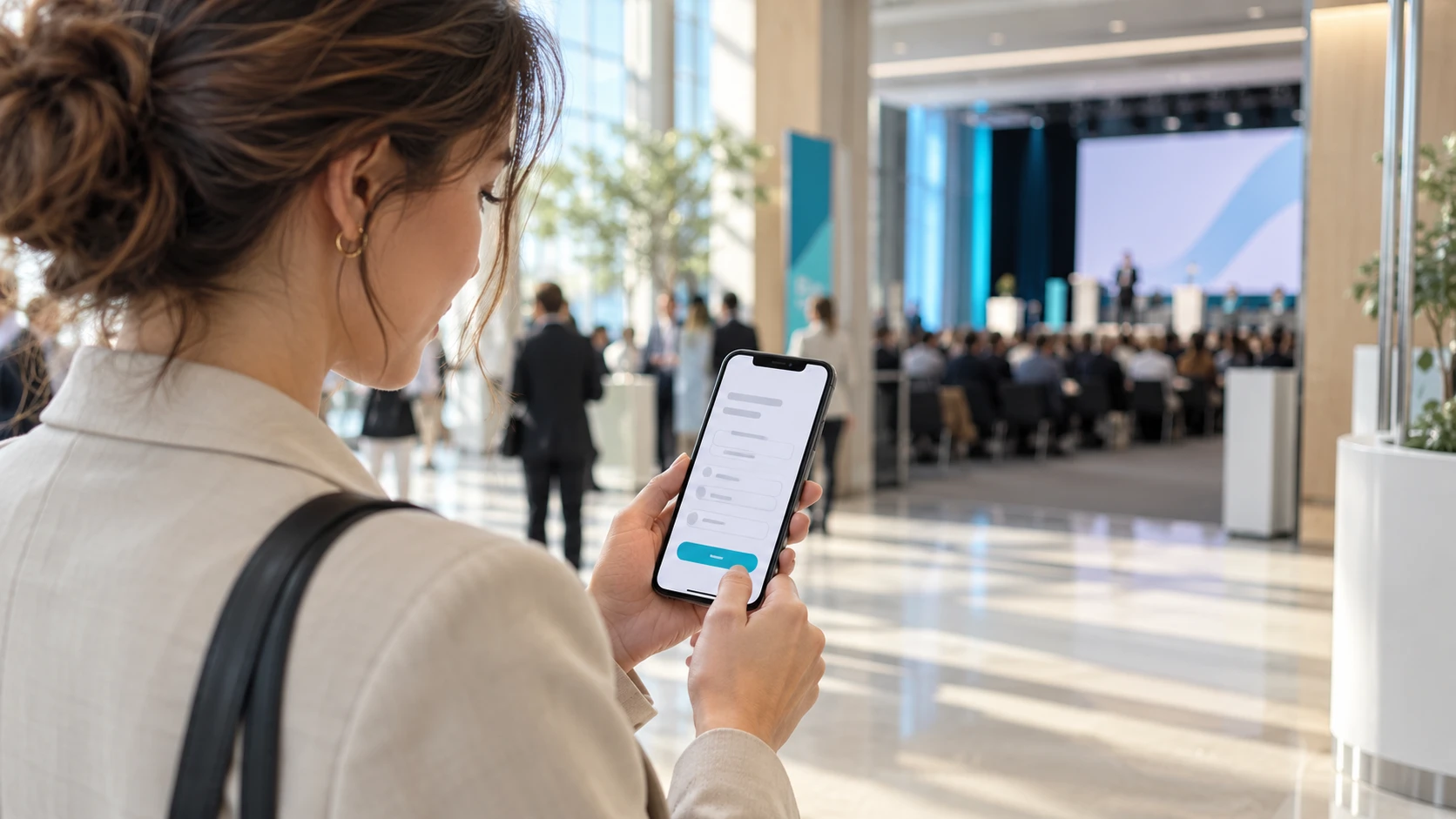
From the participant's point of view, everything should take a few seconds. A QR code appears on the big screen, people in the room scan it with their phone camera and land on the poll page. There is no app to download and no account to create: they answer from the browser. With pollMe, the I.T.S. Planet polling and quiz software for events, participants enter their name only if the organisers ask for it, then see the active question and answer in a few taps.
When voting is not open yet, the page says so clearly, so nobody is left staring at an empty screen wondering whether something is broken. When the control desk opens the vote, the question appears on every phone at the same moment. When it closes it, results can appear on the big screen, on participants' phones or on both, depending on how the session has been planned.
Simplicity is exactly what makes this sequence work: every extra step, whether a registration or a download, loses part of the room. The same principle applies to every participation tool, as we explained in Event engagement app: how to boost live interaction.
Which format to use: vote, quiz, word cloud or rating
"Poll" is a word that covers very different situations. Asking the room which topic to explore in the afternoon is not the same as checking whether a concept has been understood, or collecting the words the audience associates with a new product. That is why it pays to choose the format based on the goal of the moment, not on what looks most spectacular.
Multiple choice is the most direct format: one question, a few options, instant results shown as bars, a pie or a donut chart. It suits quick votes, choosing a topic or gauging opinion on a proposal. A word cloud collects words and ideas and highlights the most frequent ones: it is useful for opening a session by asking about expectations, or for closing it by bringing out the ideas that stuck. Open questions leave room for free comments, proposals and suggestions, which the control desk can read and highlight during the session. A rating, with stars or a numeric scale, collects structured feedback on a session, a speaker or a service.
The table sums up when each format makes sense.
| Format | When to use it | What the room sees |
|---|---|---|
| Multiple choice | Quick votes, choosing a topic, opinions on a proposal | Bars, pie or donut chart with percentages |
| Quiz with correct answer | Checking content, icebreakers, sponsor moments | Answer distribution and leaderboard |
| Scored quiz | Challenges between tables or teams, contests with a final ranking | Live ranking with scores |
| Word cloud | Expectations, session keywords, brainstorming | Cloud or bubbles with the most frequent words |
| Open question | Suggestions, free comments, proposals | Text cards or scrolling ticker |
| Rating | Session or speaker satisfaction, final feedback | Stars, bars or gauge with the average |
A good rule of thumb is to use no more than two or three different formats in the same session. Constantly switching question types turns participation into an exercise in following instructions.
Quizzes and leaderboards: when play helps people remember
A quiz adds an element that changes the atmosphere in the room: the challenge. In a quiz with a correct answer, each question has a time limit and a leaderboard of participants appears at the end. In a scored quiz, each answer can be worth a different number of points and, with equal points, speed counts too.
A quiz is not just entertainment. In a training course or a sales convention it can check that the key messages have landed: if half the room gets the same question wrong, the speaker knows what to go back over. At an event with sponsors it can become a moment dedicated to a partner, with questions about its products and a final leaderboard.
The risk to avoid is turning every break into a game. A quiz works when it is rare and well placed, for example after a block of dense talks or at the start of the afternoon. If you want to explore the link between play, learning and connections between participants, we covered it in Event gamification: how to engage audience and networking.
Control desk, speaker and big screen: who does what
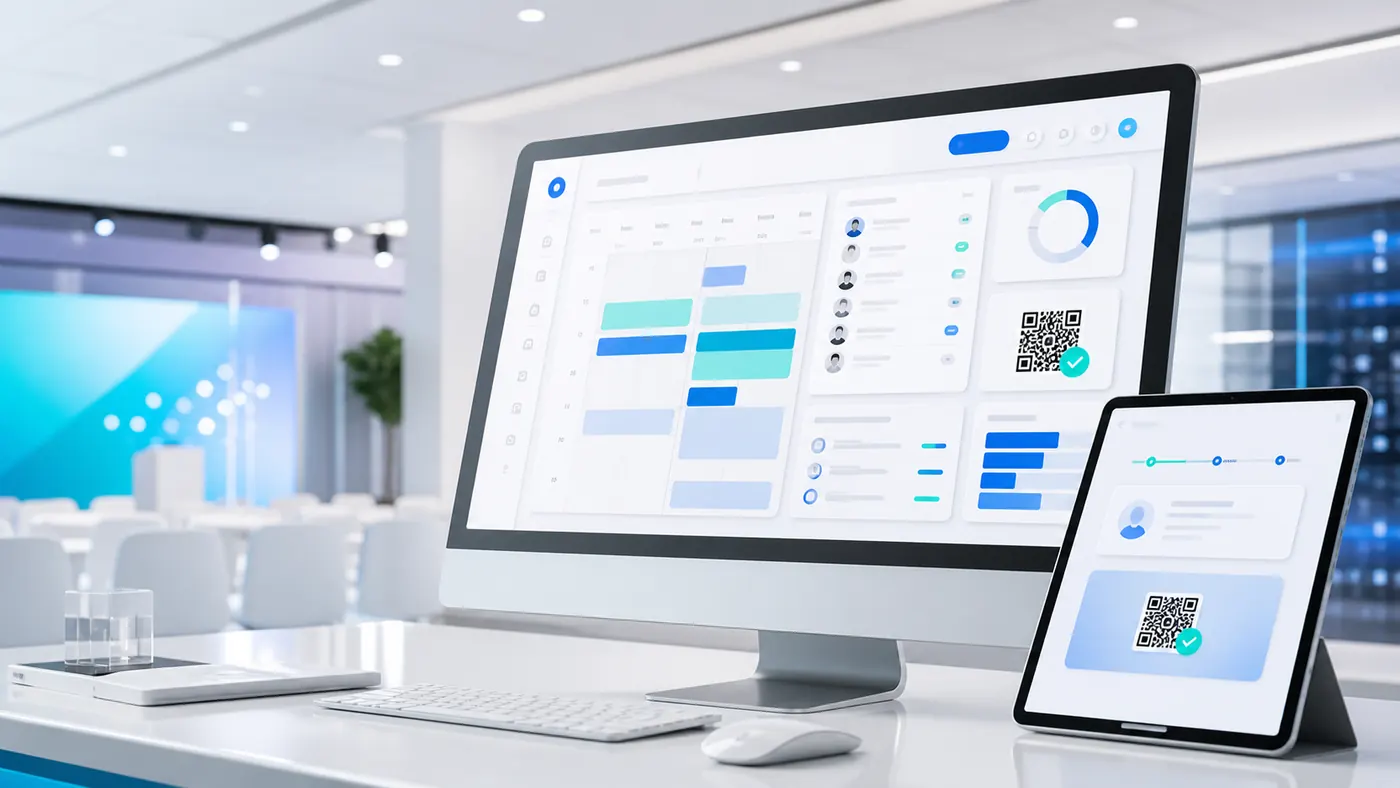
A poll in the room involves three roles, and the session only runs smoothly if each one knows what it is responsible for. The first is the control desk: the person who, from the control panel, prepares the questions, shows the QR code, opens and closes voting and decides when to reveal the results. In pollMe the control desk sees in real time how many users are active and how many answers are coming in, and can keep results hidden until the right moment to reveal them.
The second is the speaker, who should never have to deal with the technical side. For this reason there is a dedicated view on a tablet or iPad: the speaker sees the active question and how answers are trending, but has no access to the control desk commands. This way they can comment on results as they come in, without asking out loud what is going on.
The third is the big screen, whether it is a projector, an LED wall, a room monitor or the video desk of a live stream. The stage view shows the QR code to join when voting is closed, and turns into the results display when answers arrive. It adapts to the most common formats, from 16:9 projectors to vertical totem displays, so the result stays readable even from the back of the room.
The same three-role pattern applies to audience questions: if you also want to collect them in the same session, you will find how to organise them in Audience questions at conferences: how to collect them without passing the microphone around, dedicated to askMe. And if, alongside polls, you want to bring participants' photos and posts to the screen, the natural companion is a social wall such as eventWall.
Measuring the event: from the vote in the room to the final report
There is a second reason to use live polls: measuring the event. Often the only feedback available is the impression of those who were in the room, and a questionnaire emailed the next day arrives when attention has already moved on.
Asking for an opinion in the room, on the other hand, means collecting people's views at the moment they have just experienced the session. A star rating at the end of each talk, an open question on what to improve, a word cloud on the words that stay with people: this is useful information for organisers, for speakers who want to know how it went and for sponsors who ask for feedback on their moment.
For this data to be really useful, it has to be able to leave the tool. At the end of the event pollMe lets you export polls, answers and results to an Excel file, with counts, percentages, scores, times and averages. From there you can build the wrap-up report for the client, prepare follow-up content or compare editions year after year. If the report includes data about identifiable people, such as the name entered on access, it is wise to agree with your advisor how to inform participants and how long to keep the data.
For a wider view of the tools used to measure and drive participation, you can also read Event engagement: the most requested tools.
How to prepare the polls for your session in 5 steps
A successful poll is almost entirely decided before the event. These are the steps to follow together with speakers and the control desk.
- Define the goal of each questionFor every poll, ask yourself what it is for: changing the pace, checking a concept, choosing a topic, collecting feedback. If there is no clear goal, the question can go.
- Choose the format and write the questionsMatch each goal with the most suitable format and write short questions, with a few options that can be read from a distance. Prepare everything in advance in the control panel, session by session.
- Agree the timing with the speakerDecide together at which point of the talk to launch each poll and how the speaker will comment on the results. Add a cue to the slides so the transition feels natural.
- Test screen, tablet and connectionCheck the big screen format, the readability of the QR code, the speaker view and the network in the room. The control desk, the screen and the audience all need a stable connection.
- Export and share the resultsAt the end of the event download the report, share with speakers and sponsors what concerns them and note what worked for the next edition.
Checklist before you go on stage
A few minutes before the start, go through these points with the control desk.
Polls in the room: all set?
Questions loaded. Each session has its own polls, in the order set by the running order.
Readable QR code. Visible on the big screen and recalled in the speaker's slides.
Correct screen format. The stage view matches the projector or LED wall format.
Speaker tablet ready. The dedicated view is open and the speaker knows what they will see.
Connection checked. A stable network for control desk, screen and audience, tested in the room.
Privacy notice shared. If you collect names, data handling has been reviewed with your advisor.
Frequently asked questions
Does the audience need to install an app?
No. With pollMe participants join from their phone browser by scanning the QR code or opening the event link, without downloading anything.
Who decides when to show the results?
The control desk. It opens and closes voting and chooses whether and when to show results on the big screen, on participants' phones or on the speaker's tablet.
Can you run quizzes with a leaderboard?
Yes. pollMe handles quizzes with a correct answer, timer and live leaderboard, and scored quizzes where each answer can be worth different points.
Can results be exported after the event?
Yes. At the end of the event you export an Excel file with polls, answers and results, useful for the wrap-up report, follow-up and comparing editions.
Want an event where the audience answers back?
With pollMe you bring votes, quizzes, word clouds and ratings into the room, with a control desk that sets timing and results and a report ready at the end of the event.