Italiano
Why put the audience on screen
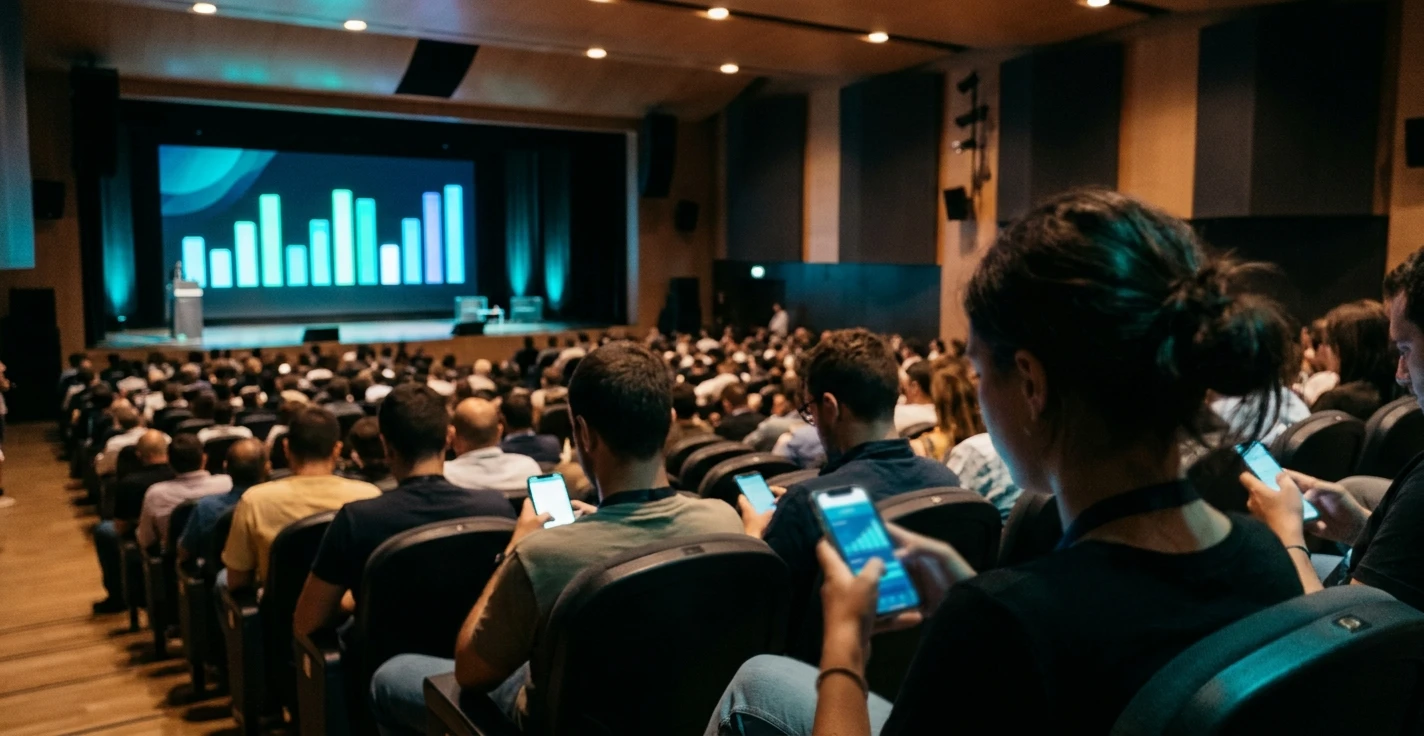
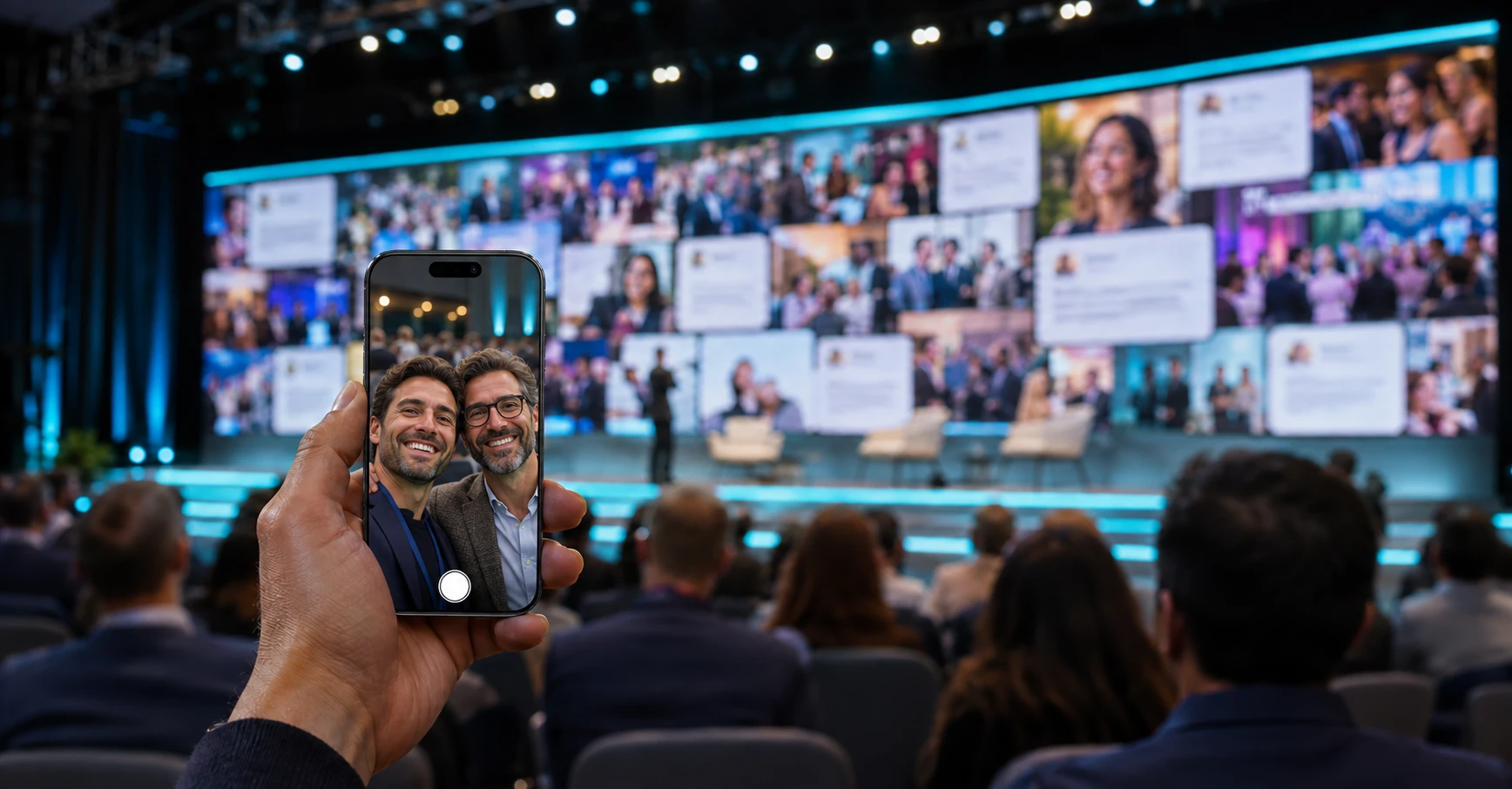
During an event, the audience produces content all the time: a photo of the stage, a comment on the talk that has just ended, a greeting to colleagues following from another office. Without a dedicated tool, all of this stays scattered across private chats and social profiles the organizer never sees. A social wall for events gathers those contributions into a single stream and brings them to the screens in the room while the event is still running.
When it works, everyone benefits:
- People who post see their message on the LED wall and feel part of the day.
- People who watch perceive a lively, engaged room, even during breaks.
- The client or brand gets a piece of stage design that tells the event's story in the voice of the people who are there.
It is the same principle behind the engagement tools we discussed in Event engagement app: how to boost live interaction: giving the audience an active role, not just a seat. There is one difference, though: a wall shows free text and images, written by hundreds of people and projected in front of everyone. That is where nasty surprises come from.
What can go wrong, and why
Anyone who has tried a social wall without preparation knows the typical cases:
- a blurry or unflattering photo of a speaker ends up full screen;
- a harmless joke among colleagues becomes embarrassing when projected in front of senior management;
- a generic hashtag also picks up posts that have nothing to do with the event;
- the wall stays empty for half an hour because nobody understood how to take part.
Behind these episodes there are almost always four problems:
- Fragmentation: content comes from different channels and there is no single place to collect it.
- Slowness: hand-picking posts from social media, chats and shared folders cannot keep up with a live event.
- Editorial risk: without a filter, unsuitable content reaches the big screen in seconds.
- Visual inconsistency: generic tools do not always respect brand colors, display format and the rhythm of the show.
The principle to keep in mind. In a well-designed social wall the roles are separate: the audience proposes, the control room decides, the screen shows. If one of these three stages is missing, sooner or later the surprise arrives.
Social media hashtag or a dedicated event channel
The first choice concerns where the content comes from. There are two routes:
- Social media hashtag. The wall collects posts published with a given hashtag. It amplifies the event beyond the room but leaves little control: content is created on external platforms, and not every guest has, or wants to use, a public profile for work.
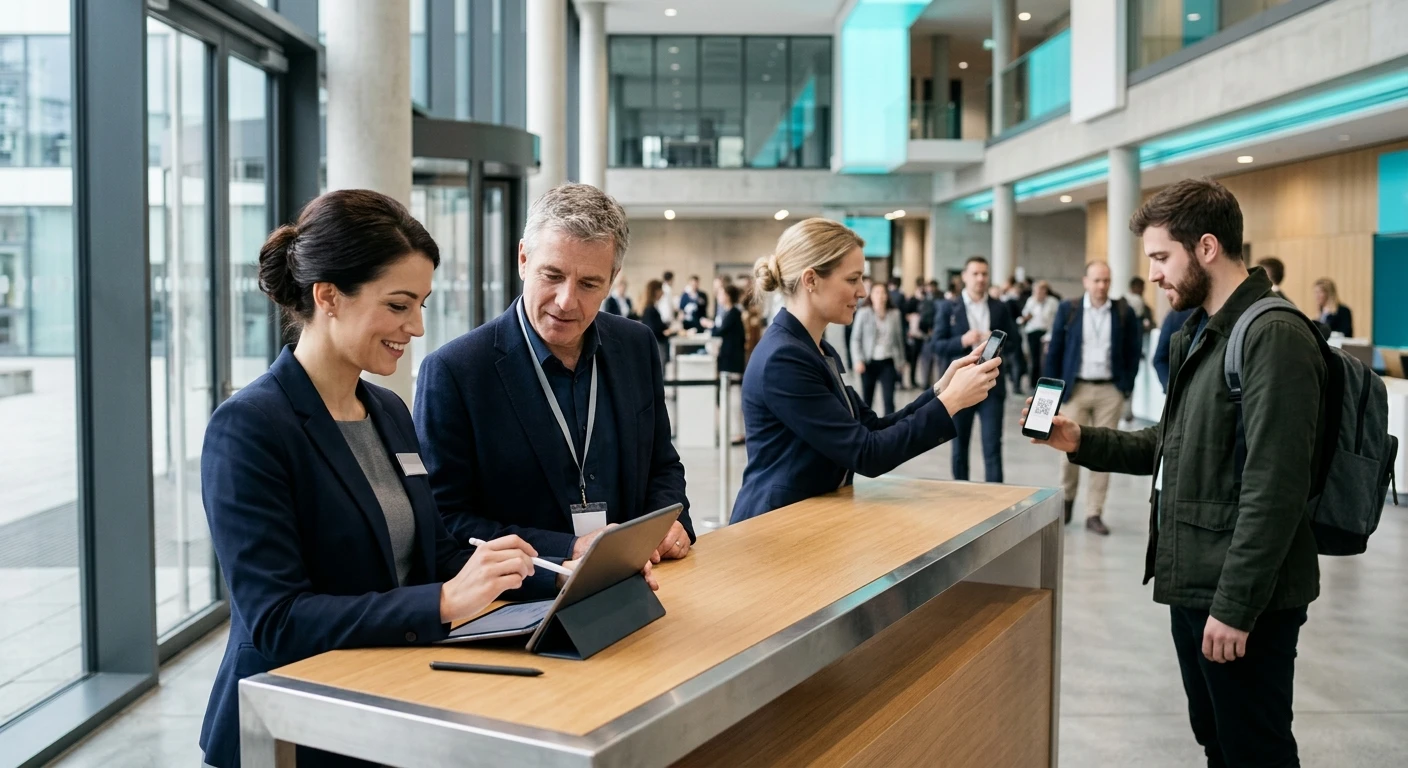
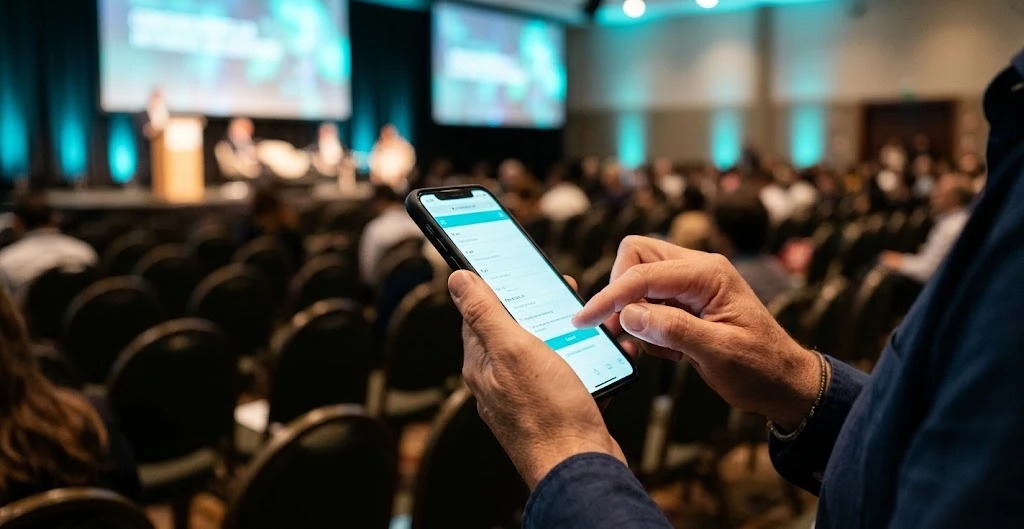
- Dedicated event channel. Guests open a web page on their smartphone via a link or QR code and post messages, photos and hashtags there. No app to install, no social account to connect.
The dedicated channel is the approach of eventWall, the proprietary social wall by I.T.S. Planet: contributions go straight to the control room, in the same environment where they are moderated and displayed. Hashtags are still useful to give the conversation a theme, but they do not depend on an external social network.
How to choose:
- public event aiming for online visibility: it makes sense to encourage social sharing too;
- internal convention, private launch, institutional event: a dedicated channel gives more control over who posts and what is shown;
- mixed approach: the wall in the room stays governed, while guests remain free to share on their own profiles.
Who can post, and under what name
Once the channel is chosen, you need to decide who can post. There are two main modes:
- Open access with a nickname. Whoever scans the QR code picks a display name and can post right away. Suited to open events, trade fair stands, festivals and any situation where fewer steps matter most.
- Restricted access. The organizer uploads a list of authorized email addresses, for example from Excel, and only people who enter an address on the list can post. Guests still choose a nickname, so full names do not necessarily appear on the wall.
If the event requires it, guests can be asked to accept a privacy notice before posting: in eventWall the PDF is linked to its version, so consent stays tied to the right document even if it is updated.
A practical tip: what to write in the notice, how to handle photos showing other people and how long to keep the content should be decided with your privacy or legal advisor. The tool helps collect and track acceptance; the content of the document should be checked with whoever advises you on these matters.
Moderation: who decides what goes on air
Moderation is the heart of a surprise-free social wall: between the guest's submission and its appearance on screen, someone looks at the content and decides. There are two modes:
- Manual moderation. Every contribution enters a waiting queue. The moderator reads it, can fix a typo and then approves, rejects or highlights it. The guest knows the message will be published after review.
- Automatic publishing. Content goes straight into the stream: the pace is livelier and the control room can still remove what does not belong afterwards.
In both cases a few tools help:
- a word blacklist defined for the specific event, acting as a first filter on new posts;
- contribution statuses (pending, approved, rejected, published, archived) so you always know where each post stands;
- search by text, author or hashtag, useful as volume grows.
| Type of event | Recommended moderation | Why |
|---|---|---|
| Internal convention or meeting with management | Manual | Every post is seen by colleagues and senior leaders |
| Institutional event or press in the room | Manual | Reputation control comes before pace |
| Product launch or brand event | Manual, with blacklist | The wall is part of the stage design and the message |
| Company party, awards, closing evening | Automatic, with blacklist | The energy of the moment matters, with the option to step in afterwards |
| Trade fair stand or festival open to the public | Case by case | Large, unknown audience: better to start with manual |
Remember that moderation is a job, not a setting: with manual mode you need a dedicated person for the whole time the wall is running.
Screens, formats and layouts
The wall lives on a screen, and event screens vary a lot. eventWall lets you set the display ratio according to where it will be shown:
- 16:9 and 4:3 for monitors next to the stage and plenary projections;
- 1:1 for square surfaces;
- 9:16 for vertical totems in the welcome area;
- 21:9 for panoramic LED walls, plus custom ratios for special surfaces.
The layout should also match the moment, because it shapes how the room reads the content:
- Mosaic: the big picture, ideal during breaks;
- Feed: an ordered, readable sequence;
- Cards: a balance between author and message;
- Fullscreen: focus on a single contribution;
- Minimal: blends into already rich stage designs;
- Celebration: extra energy for awards and closing moments.
Finally, visual identity: the event's logo, colors and fonts should accompany guests from the page where they post to the big screen. If the event already has a branded web app such as eventMe, it is worth keeping the same visual consistency across every audience touchpoint.
During the live event: running the wall
During the event, the wall should not be left to run on its own. Live control is where approved content meets the running order. The operator sees a preview of the screen and can:
- pause the stream, go back to the previous contribution or skip to the next;
- bring a single post full screen;
- change layout and adjust the ratio without interrupting the display;
- show the QR code on screen to revive participation when it drops;
- temporarily clear the screen during a stage changeover, a corporate video or any moment when the room should stay on the speaker.
The wall often runs alongside other interaction tools:
- questions for speakers need their own path, as we explained in Audience questions at a conference: how to collect them without passing microphones around;
- for votes and quizzes with real-time results there is pollMe, which we covered in Live polls and quizzes: how to keep the audience awake and measure the event.
It is worth deciding in advance which tool appears on screen at which point in the running order, so the audience does not get too many invitations at once. For an overview of the most used tools, see Event engagement: the most requested tools.
After the event: what remains
When the screen goes off, the content collected should not disappear. With eventWall you have:
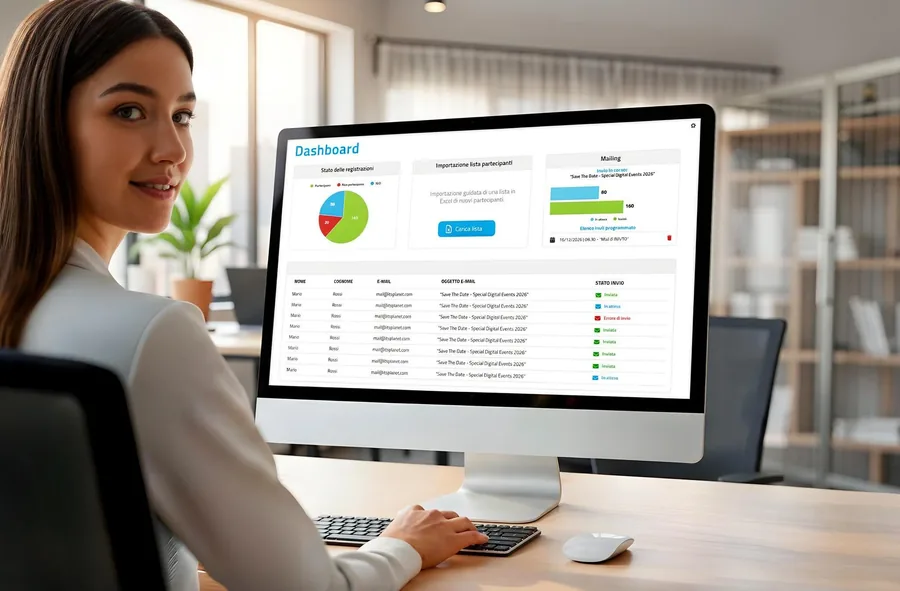
- during the live event, a dashboard showing recently connected participants and the number of items per status;
- at the end, a chronological Excel report with posts, reactions and references to the original images.
That material tells the event's story from the point of view of the people who were there and can become:
- the recap sent to participants;
- material for follow-up communication;
- part of the report delivered to the client.
Before reusing photos and text outside the event, check that the notices and permissions collected cover that use: here too, your privacy advisor is the reference. And if the event has a remote audience, the wall can bridge people in the room and those following from a distance, as we saw in Phygital events: how to unite physical and digital.
How to set up a social wall in 6 steps
These steps help you reach go-live with the decisions already made, instead of improvising them during the event.
- Define goal and toneDecide what the wall is for at that event, which moments of the running order it accompanies and what tone the content should have.
- Choose access and privacy noticeDecide whether access will be open with a nickname or restricted to an email list, and prepare any privacy notice to be accepted with your advisor.
- Set up moderationChoose between manual moderation and automatic publishing, fill in the word blacklist and assign a dedicated moderator.
- Prepare graphics and formatUpload the event's logo, colors and fonts, and set ratio and layout according to the actual screens at the venue.
- Test on the real displayBefore go-live, check readability, content density, network connection and graphic rendering on the actual monitor or LED wall.
- Plan live controlMark in the running order when to show the QR code, when to change layout and when to clear the screen, and who gives the commands.
Checklist before going on air
Before switching the wall on in front of the audience, make sure you have a clear answer to each of these points.
Social wall: six checks before going on air
Channel decided. You know whether content comes from social media or from a dedicated event channel, and why.
Access defined. You have chosen between open access and an authorized email list, and any privacy notice has been checked with your advisor.
Moderator assigned. A dedicated person follows the queue for the whole time the wall is running, with clear approval criteria.
Blacklist ready. The words to filter have been entered for this specific event.
Format tested. Ratio and layout have been tried on the real screen, with the venue's connection.
Content use clarified. You know what you will do with photos and messages after the event and whether the permissions collected allow it.
Frequently asked questions
What is an event social wall?
It is a screen, such as a monitor, LED wall or projection, that shows messages, photos and reactions posted by the audience in real time during the event. With a dedicated channel like eventWall, guests post from their smartphones and the control room decides what goes on air.
Do guests need to install an app?
No. With eventWall guests access from the browser via a link or QR code, choose a nickname and can post right away, with no installation and no social profile to connect.
How do you prevent inappropriate content from appearing?
With manual moderation every contribution is reviewed before going on air. In addition, a word blacklist defined for the event filters new posts, and the control room can always remove content from the screen.
Does the social wall work on LED walls and vertical totems?
Yes. The wall's ratio is set according to the display, for example 16:9, 9:16 for vertical totems or 21:9 for panoramic LED walls. A test on the real screen before the event is recommended.
What remains after the event?
Contributions stay linked to the event and can be exported to a chronological Excel report with posts, reactions and references to the images. Any reuse outside the event should be assessed against the notices collected, with your privacy advisor.
Want a social wall for your convention?
With eventWall the audience posts from their smartphones, your control room decides and the big screen shows only what you have approved, in your event's look and feel. See how it works and which formats you can use.